Client access

A client portal without building one

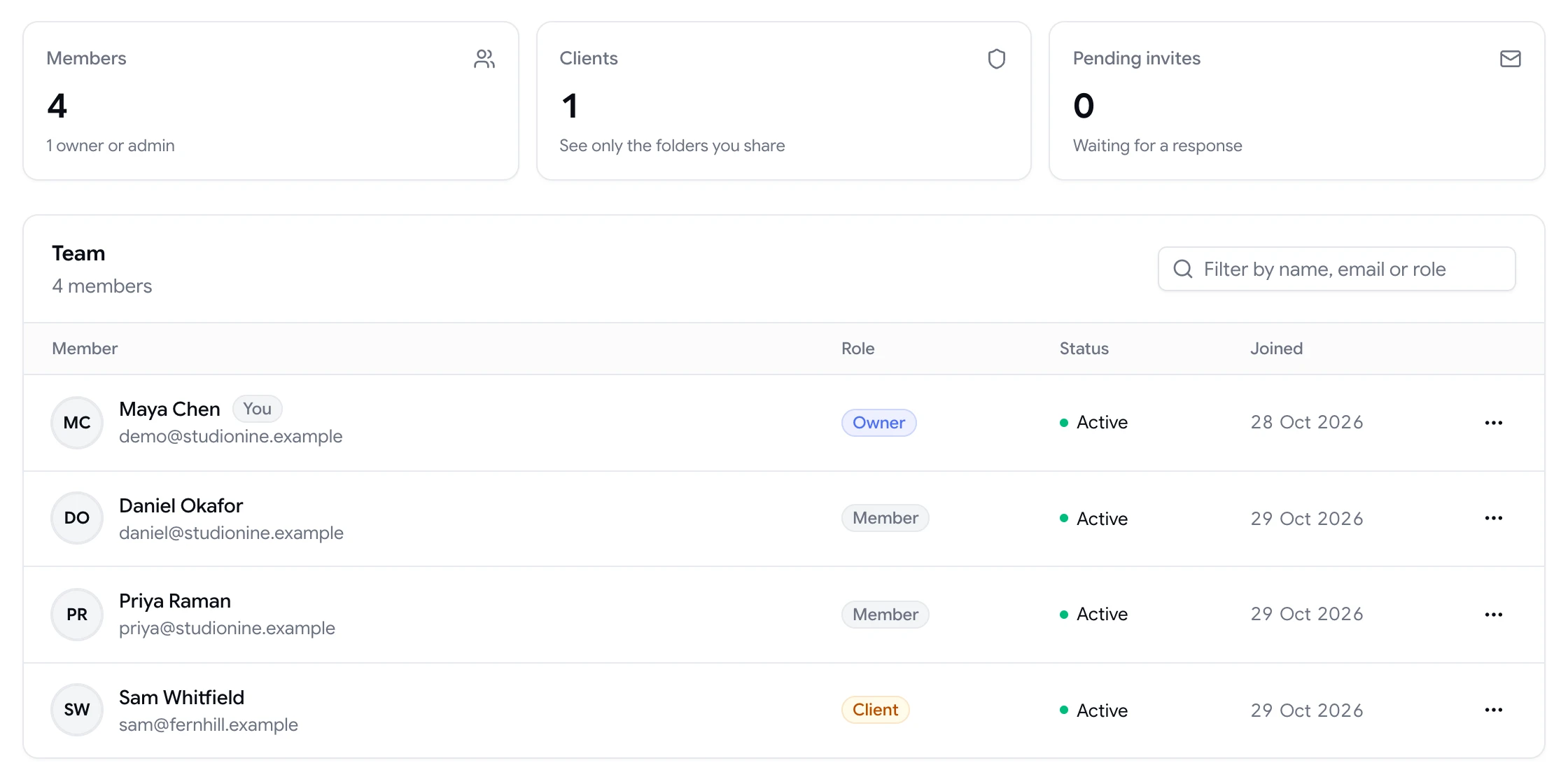
Invite clients with the client role and they'll only see the folders you share with them — never your other clients, your billing or your settings.

  • Client role
  • Folder-level sharing
  • Unlimited members
Team page showing workspace members and a client with their roles
The problem

Agencies need clients close to the work, not inside the whole account

  • Every client sees every other client's projects in the same workspace.
  • Clients have to dig up a different link for each page you send them.
  • Inviting a client as a full member gives them access to settings and billing.
  • Per-seat pricing makes adding client stakeholders expensive.
Highlights

Access control built for client work

Client role

Clients sign in and comment, but only see what you've shared with them.

Folder sharing

Share a client's folder once and they see every project inside it, including ones you add later.

Owner, admin and member

Give your own team the right level of access to manage projects, members and settings.

Multiple workspaces

Keep separate workspaces for separate businesses or departments, and switch between them.

Unlimited members

Every plan includes unlimited members and guests, so adding client stakeholders costs nothing extra.

Guest links too

For one-off reviews, skip the invite and send a guest link that needs no account.

Clients see their work and nothing else

When you work with several clients, you can't put all of them into one shared workspace. With ClientTweak's client role, each client signs in to the same workspace your team uses but only sees the folders you've shared with them.

Clients can open projects, leave comments and reply to your team. They can't see other clients' folders, and they can't reach management pages like members, billing, settings or integrations.

  • Clients only see folders shared with them
  • No access to members, billing, settings or integrations
  • Clients comment and reply like any reviewer
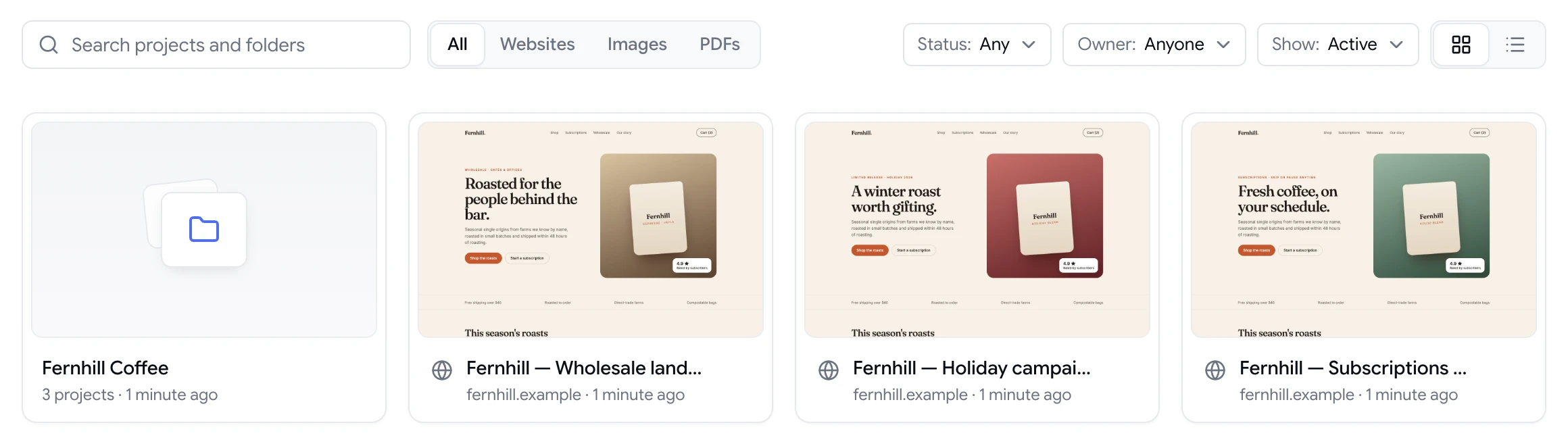
ClientTweak dashboard with a client folder and website project previews

Share a folder once, reuse it all project long

Put each client's projects in their own folder — homepage, landing pages, brand guidelines PDF — and share the folder with them. Every project you add to that folder later shows up for them automatically. No new links to send for every page.

You can see who has access to a folder and revoke it at any time, which makes offboarding a client at the end of a contract a one-click job.

  • One folder per client
  • New projects appear for the client automatically
  • Revoke access at any time

Roles for your own team

Inside your team, owners and admins manage the workspace: members, roles, billing and integrations. Members create projects, comment, assign and resolve feedback. Everyone works from the same dashboard.

Because every plan includes unlimited members, there's no reason to share logins or leave people out of reviews. Add the designer, the developer, the account manager and the client's marketing lead.

  • Owner and admin roles manage the workspace
  • Members run reviews day to day
  • Unlimited members and guests on every plan
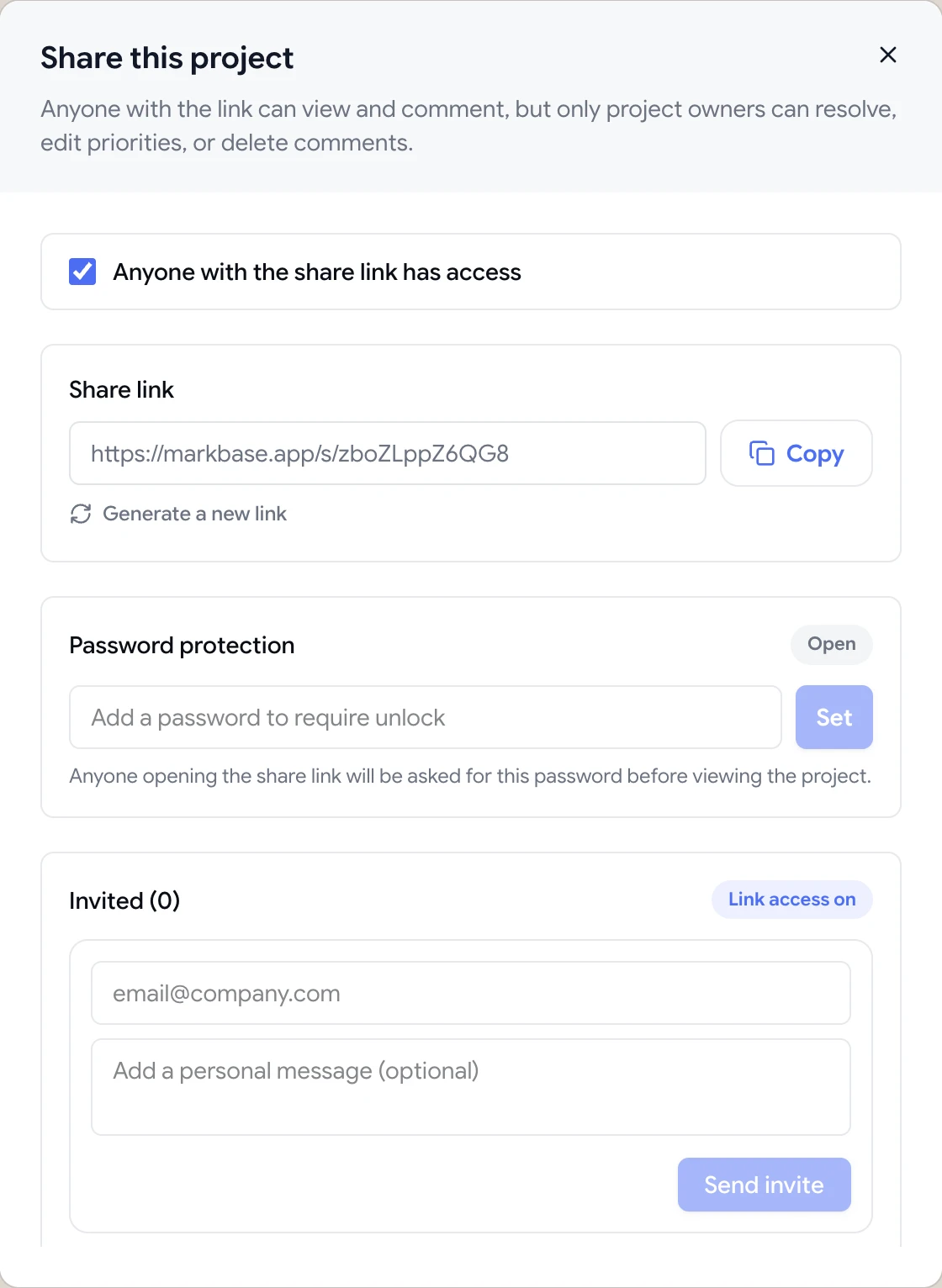
Share dialog with the guest review link, password protection and email invites

Guest links or client accounts: which to use

Both let clients review your work, so it's worth knowing when to use which. A guest link is the fastest option: send it, and anyone who opens it can comment straight away without signing in. It's ideal for one-off reviews, large stakeholder groups and people you'll only hear from once.

A client account suits ongoing relationships. The client signs in once, sees every project in the folders you've shared, and their name is attached to every comment. It's the better choice for retainer clients, multi-page builds and anyone who'll review regularly over months.

Many agencies use both: client accounts for the main contacts, and guest links for the wider team on the client's side who only need to look at one page.

  • Guest links: fastest, no sign-in, great for one-off reviews
  • Client accounts: one sign-in for all shared folders
  • Use both on the same project if you need to
How it works

Set up a client in minutes

  1. 1

    Create a folder

    Make a folder for the client and add their projects.

  2. 2

    Invite the client

    Add them to your workspace with the client role.

  3. 3

    Share the folder

    Give them access to their folder from the dashboard.

  4. 4

    Review together

    They sign in, see their projects and start commenting.

FAQ

Frequently asked questions

Can clients only see their own projects?

Yes. Members with the client role only see the folders you've shared with them. Other clients' folders, and pages like billing and settings, are hidden.

Do clients need an account?

Not for one-off reviews — a guest link works without one. For ongoing work, inviting the client with the client role gives them a sign-in that shows all their shared folders in one place.

Does adding clients cost extra?

No. Every ClientTweak plan includes unlimited members and unlimited guest reviewers, so clients and stakeholders don't add to your bill.

What roles are available?

Owner, admin, member and client. Owners and admins manage the workspace, members run reviews, and clients only see the folders shared with them.

Can I remove a client's access?

Yes. Revoke folder access or remove the client from the workspace at any time.

Can I have separate workspaces for different businesses?

Yes. You can create multiple workspaces and switch between them, each with its own members, projects and billing.

Get started

Bring clients in, keep everything else private.

Folder-level client access, unlimited members and one place for every client review.

  • Unlimited guest reviewers
  • Nothing to install
  • One flat price