Trello integration

Turn website feedback into Trello cards

Connect Trello and every new comment from a ClientTweak review becomes a card on the board you choose, ready to drag through your workflow.

  • Connect with OAuth
  • Pick the board
  • Disconnect any time

ClientTweak + Trello

The problem

Feedback that never makes it into Trello never gets done

  • Someone has to copy every comment into Trello by hand.
  • Cards arrive without the page or the context they came from.
  • Feedback sits in one tool while the work is planned in another.
  • Nobody can trace a fix back to the comment that asked for it.
Highlights

What the Trello integration does

For freelancers, studios and small teams who run projects on Trello boards.

New cards from comments

Each new comment on a project creates a card in the Trello board you choose.

Context included

The card carries the comment text, author, priority, status, page URL and the project it came from.

Link back to the pin

Every card includes a permalink that opens the comment in ClientTweak, with its screenshot and replies.

Resolutions and deletions

Resolving or deleting a comment in ClientTweak is sent to Trello as a new card, so there's a record of it.

Automatic retries

If Trello is unavailable, ClientTweak retries the delivery automatically with increasing delays.

Secure connection

You connect through Trello's authorization screen. Tokens are encrypted at rest and you can disconnect at any time.

Comments become cards automatically

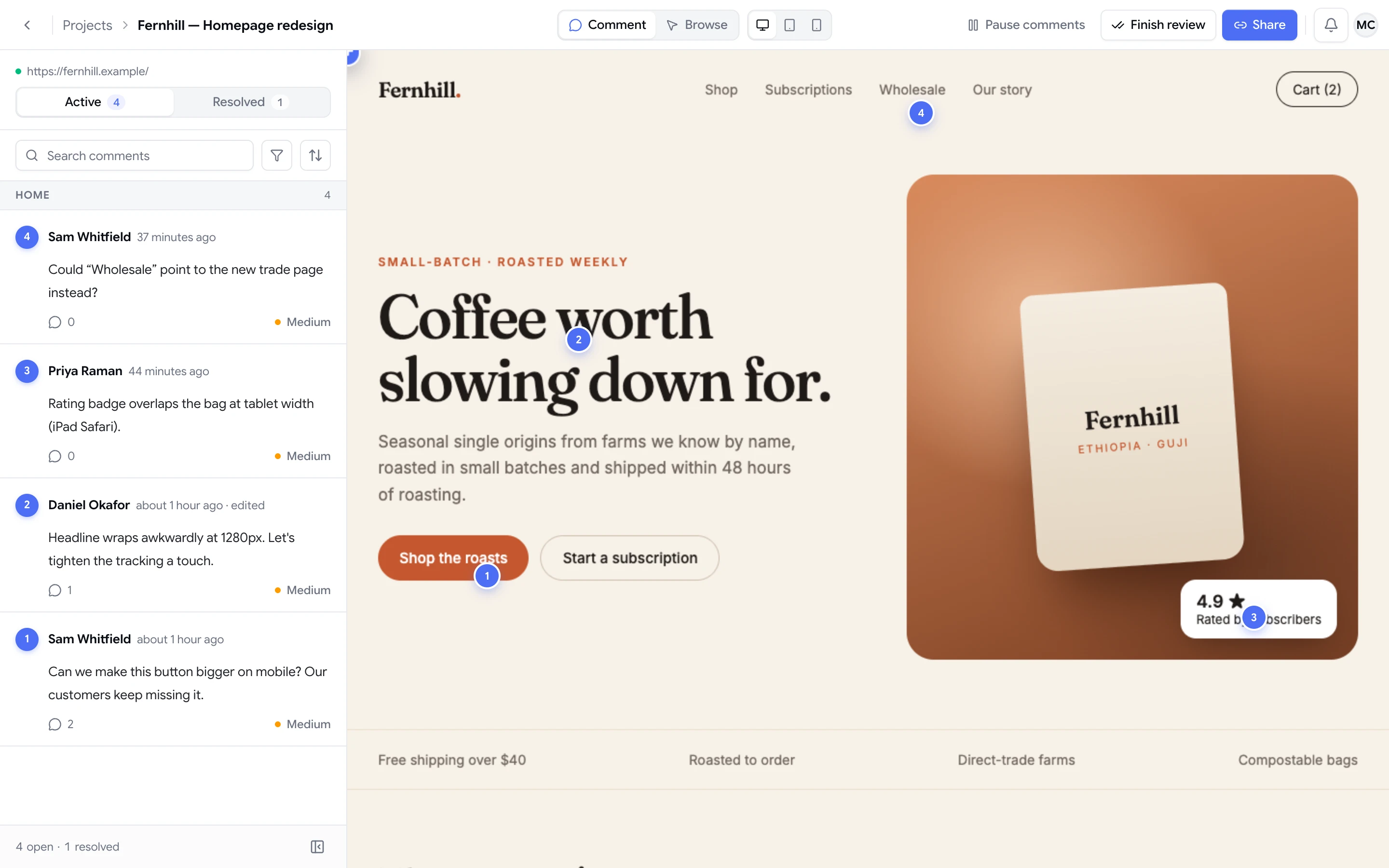
Once Trello is connected, you don't have to copy feedback across. When a reviewer pins a new comment on a website, PDF or image in your workspace, ClientTweak creates a card in the Trello board you picked.

The card is titled with the project name and the first line of the comment, so it's easy to scan in a busy board. Replies stay in ClientTweak as part of the comment thread, so Trello gets one card per piece of feedback rather than one for every message.

  • Titled “[Project] first line of the comment”
  • Comment text, author, priority and status in the description
  • The page URL and project URL included
  • A permalink back to the comment in ClientTweak
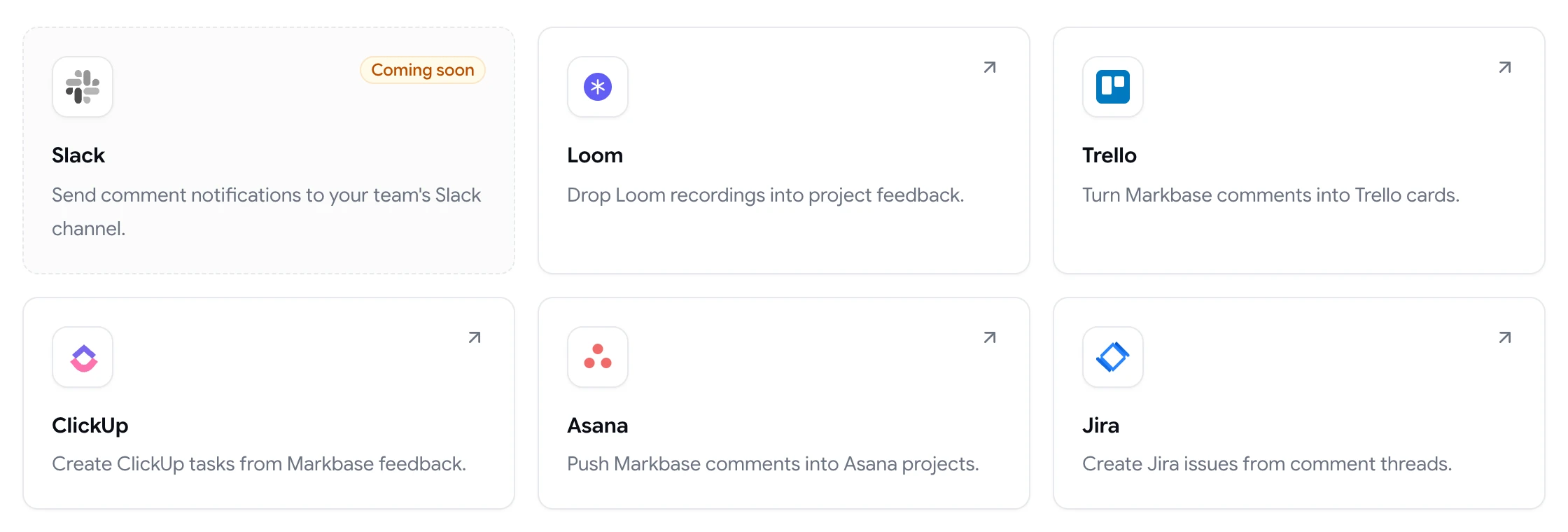
ClientTweak integrations page listing Loom, Trello, ClickUp, Asana and Jira, with Slack coming soon

The context travels with the work

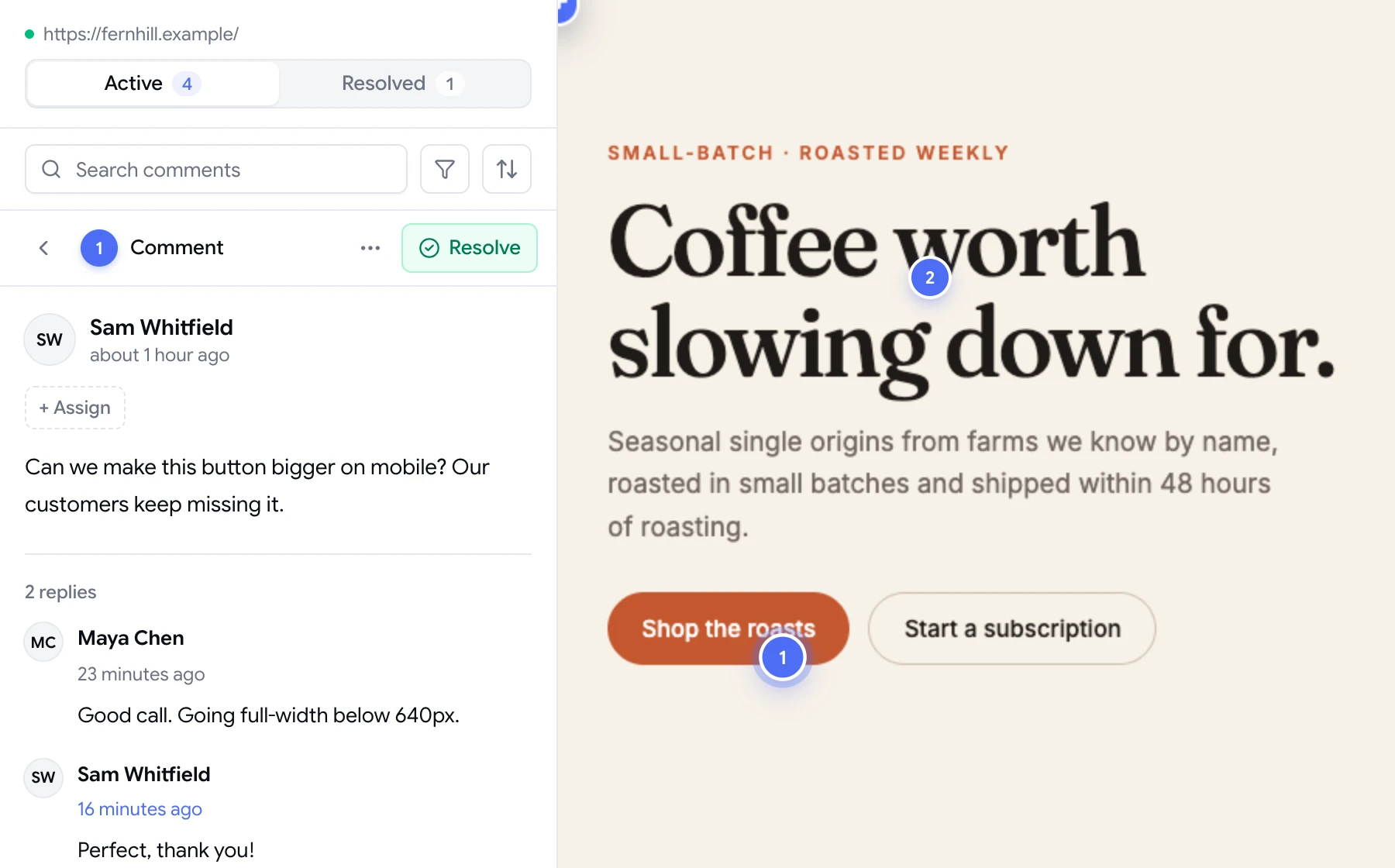
A card that says “fix the button” isn't much use. Because every card links back to the original comment, whoever picks it up can open the pin in one click and see the element, the screenshot of what the reviewer saw, their viewport size and the whole conversation.

That's especially useful for clients and stakeholders who will never log in to your task tracker. They keep commenting in ClientTweak, and your team keeps planning where it already works.

  • One click from the task to the pinned comment
  • Screenshot and viewport details stay in ClientTweak
  • Clients never need access to your task tracker
A comment thread with replies, pinned to a button on the page

What gets sent, and when

ClientTweak sends three kinds of comment events to Trello: a new comment, a comment being resolved, and a comment being deleted. Each one creates its own card, labelled with what happened, so your board keeps a trail of the feedback lifecycle.

Deliveries happen in the background. If Trello is temporarily unavailable or rate-limits the request, ClientTweak retries with increasing delays. Disconnecting stops new deliveries; cards that were already created stay in Trello.

  • New comments, resolutions and deletions are sent
  • Replies stay in the ClientTweak thread
  • Failed deliveries are retried automatically
  • Existing cards stay put if you disconnect
ClientTweak review screen: a client's homepage with numbered comment pins and the comment list beside it
How it works

Connect Trello in a minute

  1. 1

    Open Integrations

    In your ClientTweak workspace, go to Integrations and choose Trello.

  2. 2

    Connect

    Click Connect and approve access through Trello's authorization screen.

  3. 3

    Pick a board

    Choose the Trello board where new cards should be created.

  4. 4

    Start reviewing

    New comments now arrive in Trello as cards, with a link back to the pin.

FAQ

Frequently asked questions

How do I connect ClientTweak to Trello?

Open Integrations in your ClientTweak workspace, choose Trello and click Connect. Approve access through Trello's authorization screen, then pick the board where cards should be created.

What information is included in each Trello card?

The comment text, the author, its priority and status, the page URL, the project name and URL, and a permalink that opens the comment in ClientTweak.

Do replies create new cards?

No. Only new top-level comments, resolutions and deletions are sent. Replies stay in the comment thread in ClientTweak, which the card links back to.

What happens in Trello when I resolve a comment?

ClientTweak sends the resolution to Trello as a new card marked as a resolved comment, so you have a record of it. It doesn't edit or close the original card.

Which ClientTweak plans include the Trello integration?

All of them. Every ClientTweak plan — monthly, yearly and lifetime — includes every integration.

Which Trello list do new cards go to?

Cards are created on the board you pick when you connect. From there you can move them through your lists like any other card.

Can I disconnect Trello later?

Yes. Disconnect from the Integrations page at any time. New deliveries stop, and cards that were already created stay in Trello.

Get started

Send your next review straight to Trello.

Clients comment on the page. Your team gets cards with a link back to every pin.

  • Unlimited guest reviewers
  • Nothing to install
  • One flat price