For designers

Review the build, not the mockup

The design is approved, then the build drifts: spacing, type sizes, an image cropped wrong. ClientTweak lets you pin design feedback to the live page, so developers see exactly what to change and where.

  • Pin to real elements
  • Desktop, tablet and phone
  • Draw on the page
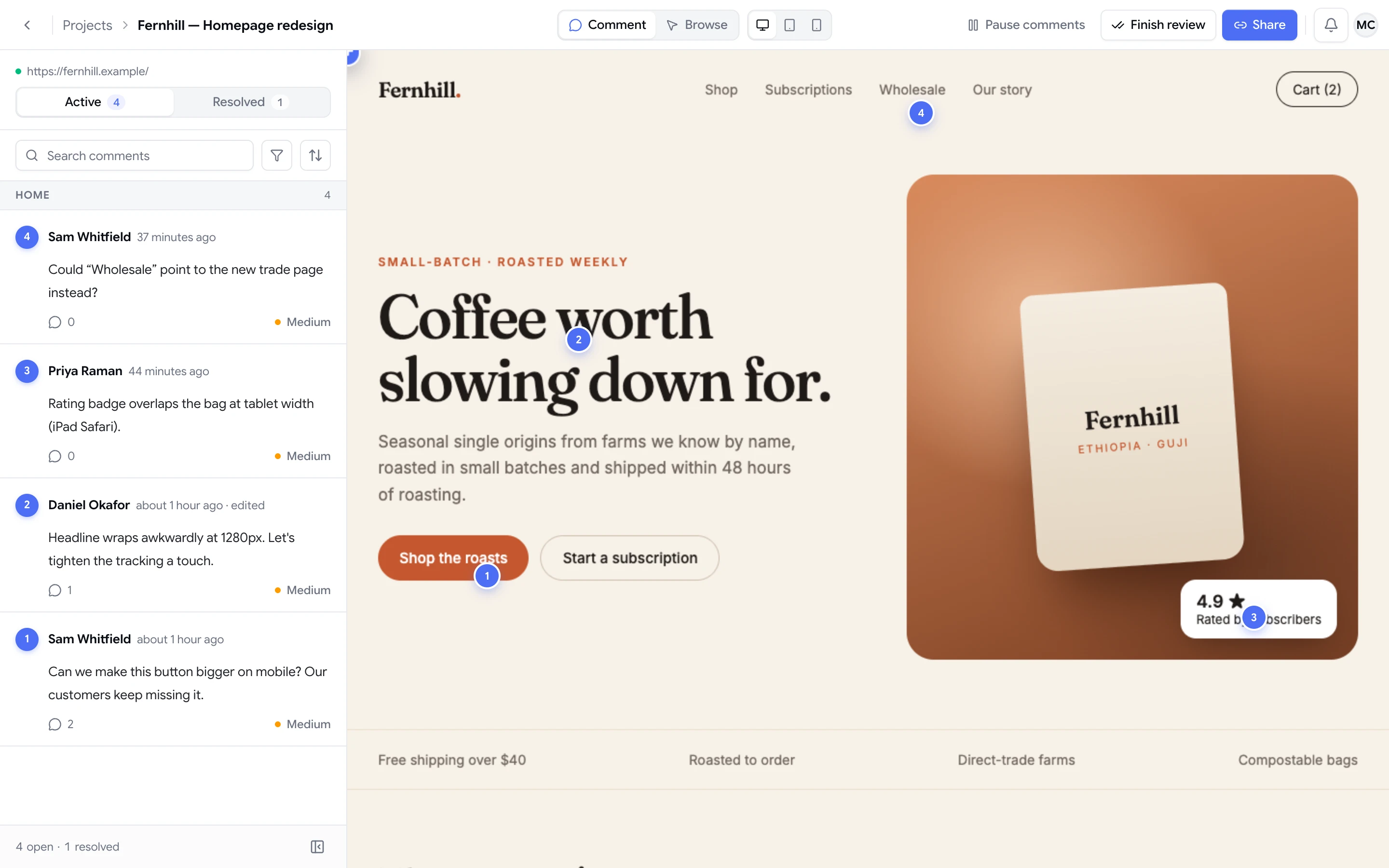
ClientTweak review screen: a client's homepage with numbered comment pins and the comment list beside it
The problem

Design QA shouldn't mean a 40-slide deck of annotated screenshots

  • You screenshot the staging site, annotate it, export it, and email it to a developer.
  • By the time they read it, the layout has changed and the screenshot is out of date.
  • “The spacing looks off” means nothing without pointing at the exact element.
  • Mobile issues get missed because nobody checked the narrow breakpoint.
  • Feedback on the mockup and feedback on the build live in different tools.
Highlights

Design feedback with precision

ClientTweak gives designers a way to point at the real thing, at the width that matters.

Anchored to the element

Pins attach to the element you clicked, not a screen coordinate, so they stay in place as the page changes.

Every breakpoint

Switch between desktop, tablet and phone previews. Comments are scoped to the width they were left on.

Draw what you mean

Use Annotate to sketch on top of the page alongside your comment when words aren't enough.

Mockups too

Upload PNG, JPEG, WebP or GIF design exports and PDFs, and upload new versions as you iterate.

A screenshot of what you saw

Each comment can save the visible viewport plus its size and scroll position, so nobody has to recreate it.

Loom when it's easier

Attach a Loom recording to a comment to walk through an interaction or animation.

Point at the exact element on the live page

Open the staging URL in ClientTweak, switch to Comment mode and click the heading, card or button you want to change. The pin attaches to that element and is numbered in the comment list, so developers know exactly what you mean.

Use Browse mode to click through the site normally, open menus and move between pages, then switch back to Comment mode wherever you spot something. Nothing is installed on the website, so you can review any staging environment your team can reach by URL.

  • Element-anchored pins with numbered comments
  • Browse mode for navigating, Comment mode for feedback
  • Drawing annotations alongside the comment
Check every width before it ships

Responsive issues are the ones that slip through. Switch the preview between desktop, tablet and phone and review each layout properly. Comments are scoped to the page and width they were left on, so a phone-only spacing note doesn't confuse whoever is fixing the desktop layout.

  • Desktop, tablet and phone previews
  • Comments scoped to the width they were left on
  • Viewport size saved with every comment
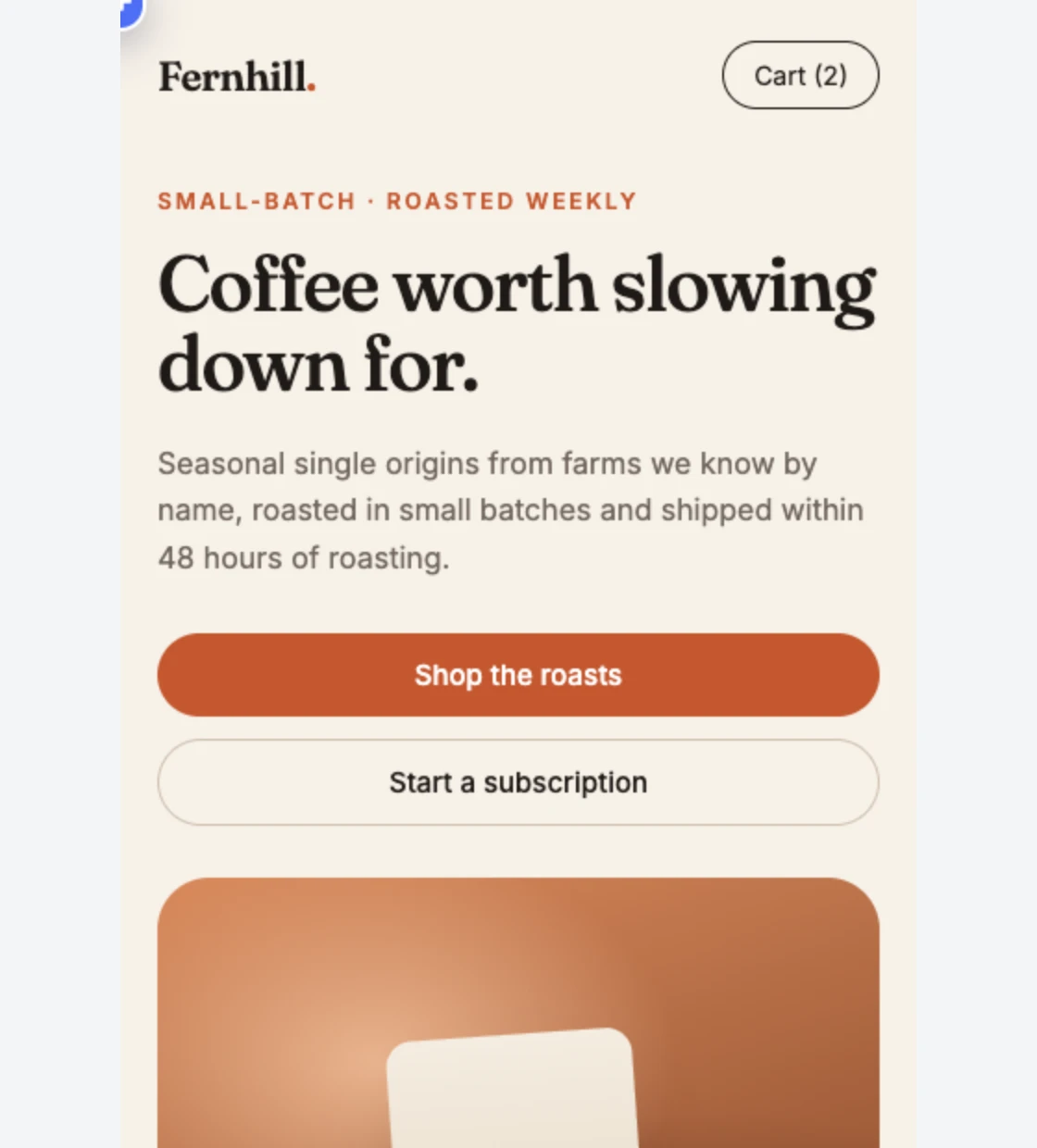
Phone-width preview of a website inside ClientTweak

Keep the conversation on the pin

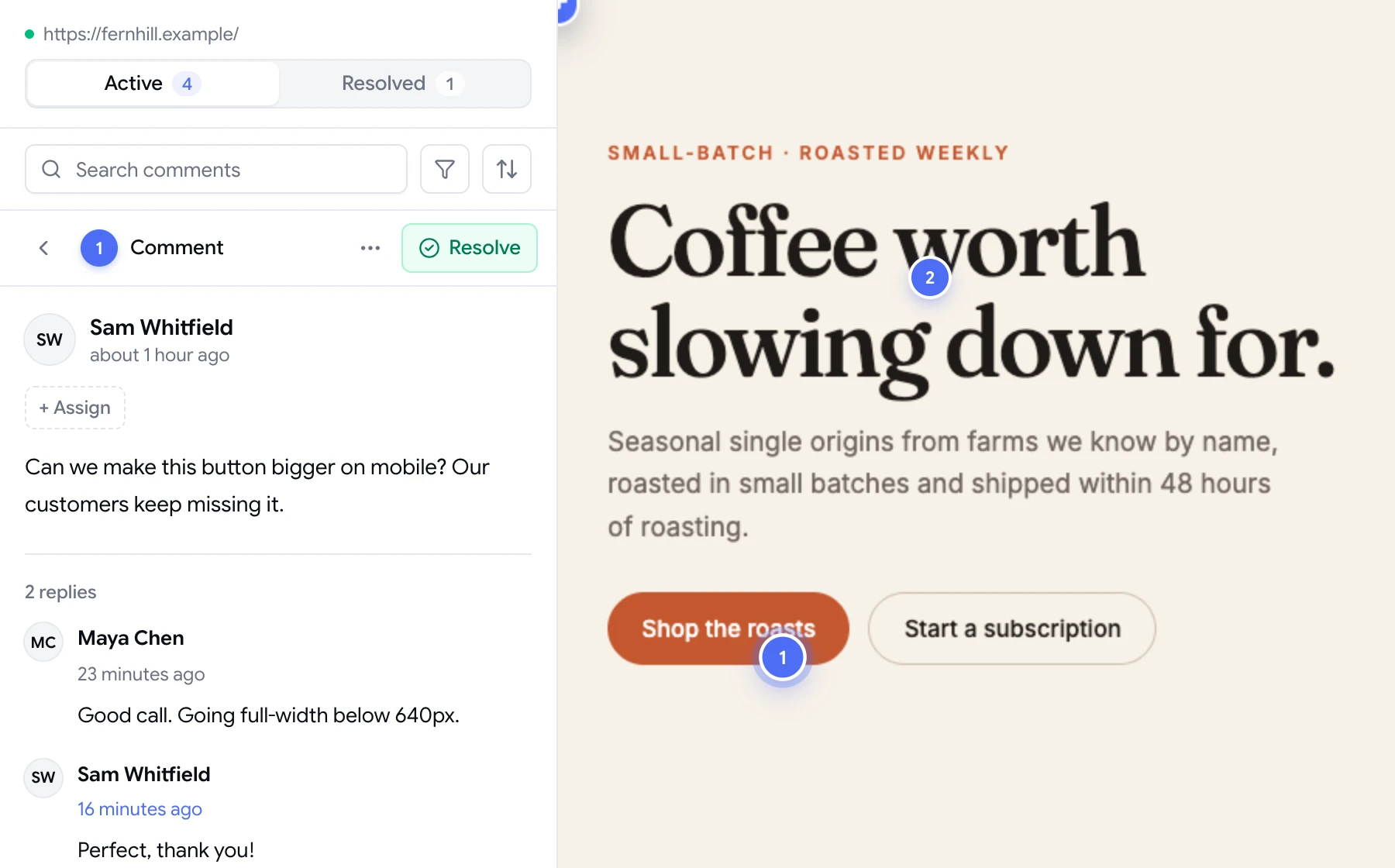
Developers reply in the thread, ask a question or mark the comment resolved when it's fixed. You can reopen it if it isn't right. Set priority so the visual bugs that block launch stand out from the polish, and mention a teammate to pull them into a decision.

When the build is ready for another pass, the Active and Resolved tabs show exactly what's left.

  • Threaded replies and @mentions
  • Low, medium and high priority
  • Active and Resolved tabs
A comment thread with replies, pinned to a button on the page

Close the gap between design and build

Most design drift isn't anyone's fault. A developer works from a static file, real content is longer than the placeholder, and a component behaves differently at a width nobody drew. The fix is a regular, structured review of the build itself, not another round of annotated screenshots.

ClientTweak makes that review quick enough to do often. Open the staging URL, check each page at desktop, tablet and phone, and pin anything that's off. Developers get a numbered list of changes, each attached to the element and saved with a screenshot of what you saw, so they're not left interpreting a slide.

Keep mockup feedback in the same workspace by uploading image or PDF exports as their own projects. When the design moves on, upload a new version and keep the history.

  • Review early and often, not just before launch
  • Mockups and builds in one workspace
  • A clear, numbered list for developers
How it works

A design QA pass in ClientTweak

  1. 1

    Add the staging URL

    Create a website project from the build your developers shared.

  2. 2

    Review each breakpoint

    Comment at desktop, then switch to tablet and phone.

  3. 3

    Prioritise

    Mark launch blockers high and polish low, and assign owners.

  4. 4

    Verify fixes

    Check resolved comments on the updated build and reopen anything that's off.

FAQ

Frequently asked questions

How do I give design feedback on a live website?

Open the site in a visual feedback tool like ClientTweak, click the element you want to change and describe the change. The comment is pinned to that element with a screenshot, so the developer sees exactly what you mean.

Can I review responsive layouts?

Yes. Switch the preview between desktop, tablet and phone widths. Comments are scoped to the width they were left on.

Can I comment on mockups as well as the built site?

Yes. Create an image project from a PNG, JPEG, WebP or GIF export, or a PDF project, and upload new versions as the design evolves.

Does ClientTweak import Figma files?

Not directly. Export frames from your design tool as images or PDF and upload them as an image or PDF project.

Can I draw on the page?

Yes. Use Annotate to add drawings on top of the page alongside a comment.

Do developers need to install anything?

No. ClientTweak runs in the browser and nothing is installed on the website or on reviewers' machines.

How often should designers review the build?

As soon as a page is on staging and again before each release. Short, frequent reviews catch drift while it's still cheap to fix, and ClientTweak makes each pass quick enough to fit into a normal week.

Can I compare versions of a mockup?

Yes. Upload a new version of an image or PDF project and the version history is kept, so you can look back at earlier iterations.

Get started

Make your next design QA pass precise.

Pin feedback to the real build at every breakpoint.

  • Unlimited guest reviewers
  • Nothing to install
  • One flat price