PDF proofing

Proof PDFs without the marked-up email attachments

Brochures, reports and proposals go through rounds of corrections, usually as annotated PDFs bouncing around email. ClientTweak keeps one version of the truth: upload the PDF, share a link, and collect comments pinned to each page.

  • Pinned comments on pages
  • Upload new versions
  • Reviewers need no account
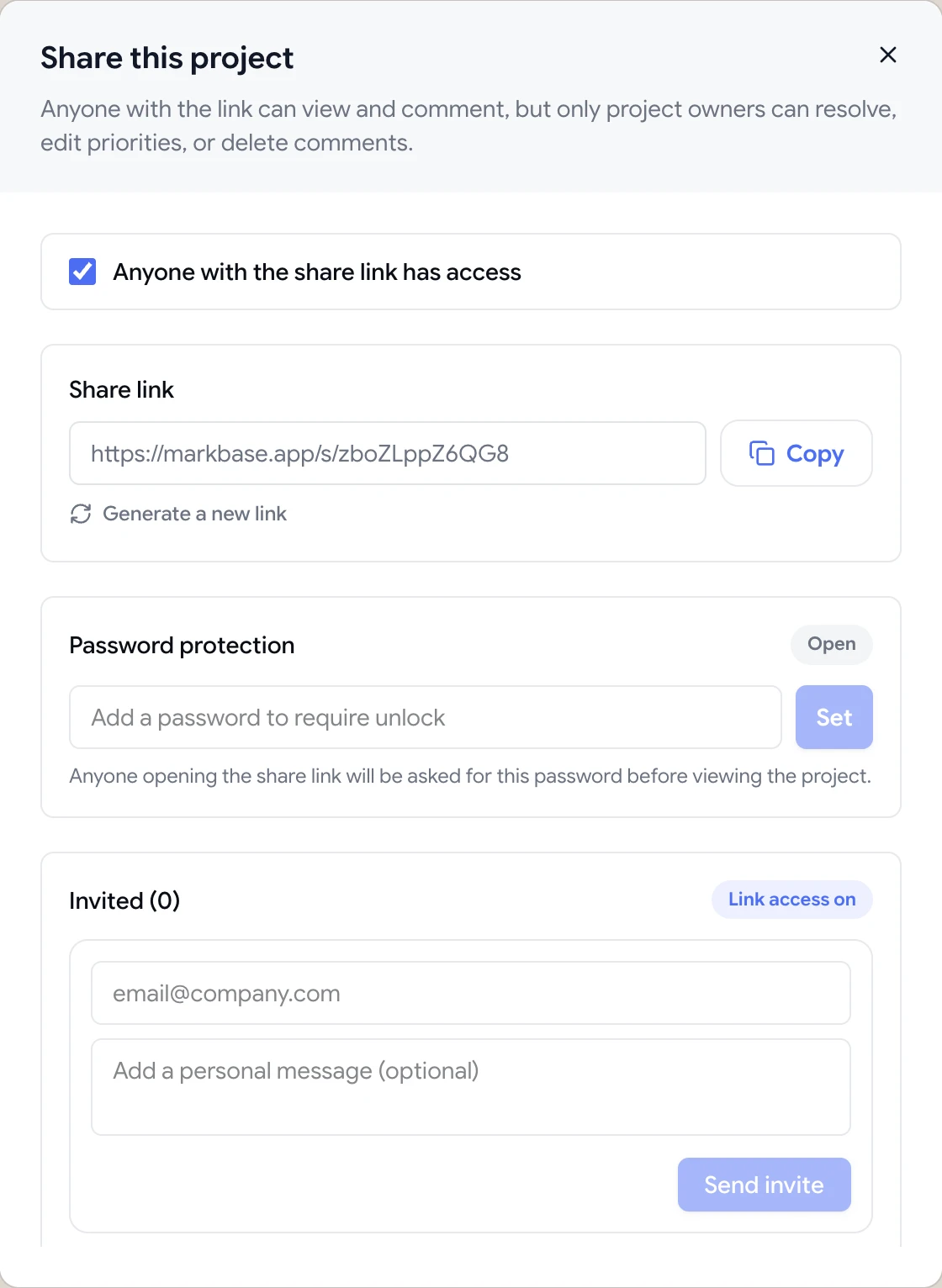
Share dialog with the guest review link, password protection and email invites
The problem

PDF reviews by email turn into version chaos

  • Three reviewers return three different annotated copies.
  • Nobody knows which file is “final_v3_FINAL”.
  • Comments refer to page numbers that changed in the last version.
  • Reviewers need a specific PDF app to add comments.
  • Corrections get missed because there's no list of what's outstanding.
Highlights

One PDF, every reviewer, every round

Pin to the page

Click anywhere on a page to leave a numbered comment.

Everyone in one copy

All reviewers comment on the same document, so feedback isn't split across files.

New versions

Upload a corrected PDF as a new version; version history is kept.

Share a link

Reviewers open the PDF in their browser, with no account or PDF app.

Outstanding list

Open and resolved tabs show exactly which corrections are left.

Images too

Review print-ready images and artwork as image projects.

Every reviewer, one document

Upload the PDF to ClientTweak and share the link. Every reviewer comments on the same document in their browser, pinning corrections to the exact spot on the page. You get one list of feedback instead of several annotated copies to reconcile.

  • Native PDF review
  • Comments pinned to page locations
  • Threaded replies and @mentions
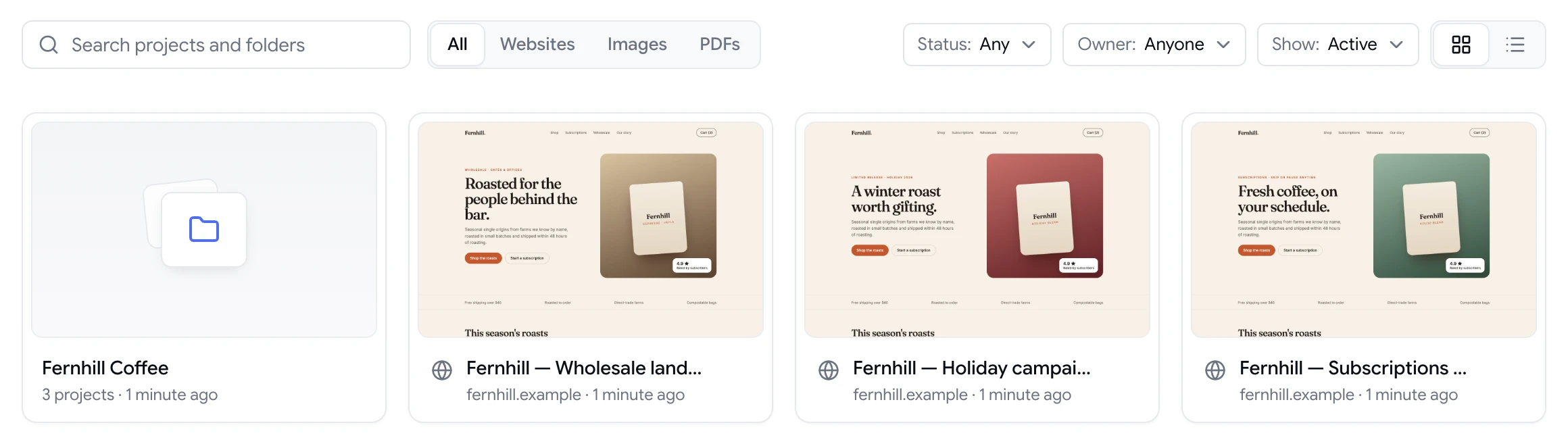
ClientTweak dashboard with a client folder and website project previews

Versions without the file names

When corrections are made, upload the new PDF as a new version of the same project. ClientTweak keeps the version history, so you're not emailing files with ever-longer names.

Know when proofing is done

Resolve each correction once it's made. The Active and Resolved tabs show what's left, and Finish review marks the round complete. Assign corrections to the designer responsible, and prioritise anything that must be fixed before print.

  • Assignees and priorities
  • Finish review
  • Pause comments between rounds
A comment thread with replies, pinned to a button on the page

Running a PDF proofing round

Start each round with a clear brief: what's changed since the last version, what reviewers should focus on, and when feedback is due. Share the link with the reviewers for that round and ask for one comment per correction.

As corrections come in, assign them to the designer or writer responsible and set priority on anything that must be fixed before print or publication. Resolve each correction when it's made, then upload the corrected PDF as a new version of the same project.

When every comment is resolved, finish the review. If another round is needed, share the updated version and repeat. The project keeps its version history, so you can always look back at what an earlier draft said.

  • Brief reviewers on each round
  • One comment per correction
  • Resolve, then upload the new version
  • Finish the review when it's clean
How it works

Proof a PDF with ClientTweak

  1. 1

    Upload the PDF

    Create a PDF project in the right folder.

  2. 2

    Share for review

    Send the link to every reviewer.

  3. 3

    Make corrections

    Work through pinned comments and resolve them.

  4. 4

    Upload the new version

    Repeat until it's ready to print or publish.

FAQ

Frequently asked questions

How do I get feedback on a PDF from several people?

Share one copy that everyone comments on, instead of emailing the file around. In ClientTweak, reviewers open a link and pin comments to the PDF's pages.

Do reviewers need Adobe Acrobat or another PDF app?

No. The PDF opens in ClientTweak in their browser.

Can I upload a new version of the PDF?

Yes. Upload a new version to the same project and the version history is kept.

Can reviewers highlight text in the PDF?

Reviewers pin comments to locations on the page and describe the correction. Text highlighting isn't supported.

What's the maximum file size?

Attachments on comments can be up to 100 MB, and each workspace has 50 GB of storage.

Can I review images like artwork or banners?

Yes. Upload PNG, JPEG, WebP or GIF files as image projects and collect pinned comments the same way.

Can reviewers comment without an account?

Yes. Anyone with the share link can comment as a guest.

Can we organise PDFs by client or campaign?

Yes. Put projects in folders, and archive them when the work is finished.

Get started

Start your next review today.

Pin feedback on live websites, PDFs and images, and turn it into work your team can track.

  • Unlimited guest reviewers
  • Nothing to install
  • One flat price